|
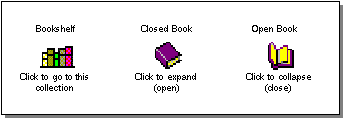
A bookshelf icon to the left of a heading is a link to that collection of topics, subjects, or books. A closed book icon to the left of a heading indicates there are subheadings beneath it. An open book icon indicates an expanded list of subheadings.
|
|
|
|
|
Click on the bookshelf icon to display the collection of related topics in the selection frame. The selection frame now contains a new list with a closed book icon to the left of each heading. Click on the browser
Back button to return to the previous list of topics. Click on a closed book icon to expand one of the currently displayed headings. The closed book icon changes to an open book icon and expands the list to include subheadings.
|
|
|
In general, when you click on a closed book, the chapter or section expands and when you click on an open book, the chapter or section collapses. The other headings in the selection frame remain on display in the frame and are unaffected by expanding or collapsing a list.
|
|
|
You can expand or collapse all of the main headings at once by clicking on the book icons for
Open All and
Close All at the top of the selection frame. Except for the
Open All command, you can only have one section open at a time. If all sections in the selection frame are open, clicking on the open book icon for one section causes all the
other open sections to collapse. You can then click on any closed book icon to open a new section or chapter and all currently "open" books close automatically.
|